Update basic employee details
Use the People tab to quickly update basic employee details, such as a job title and contact details.
- Open the People tab.
- Use the Search field to locate the record that you want to work with. Enter any term shown under the column headers:
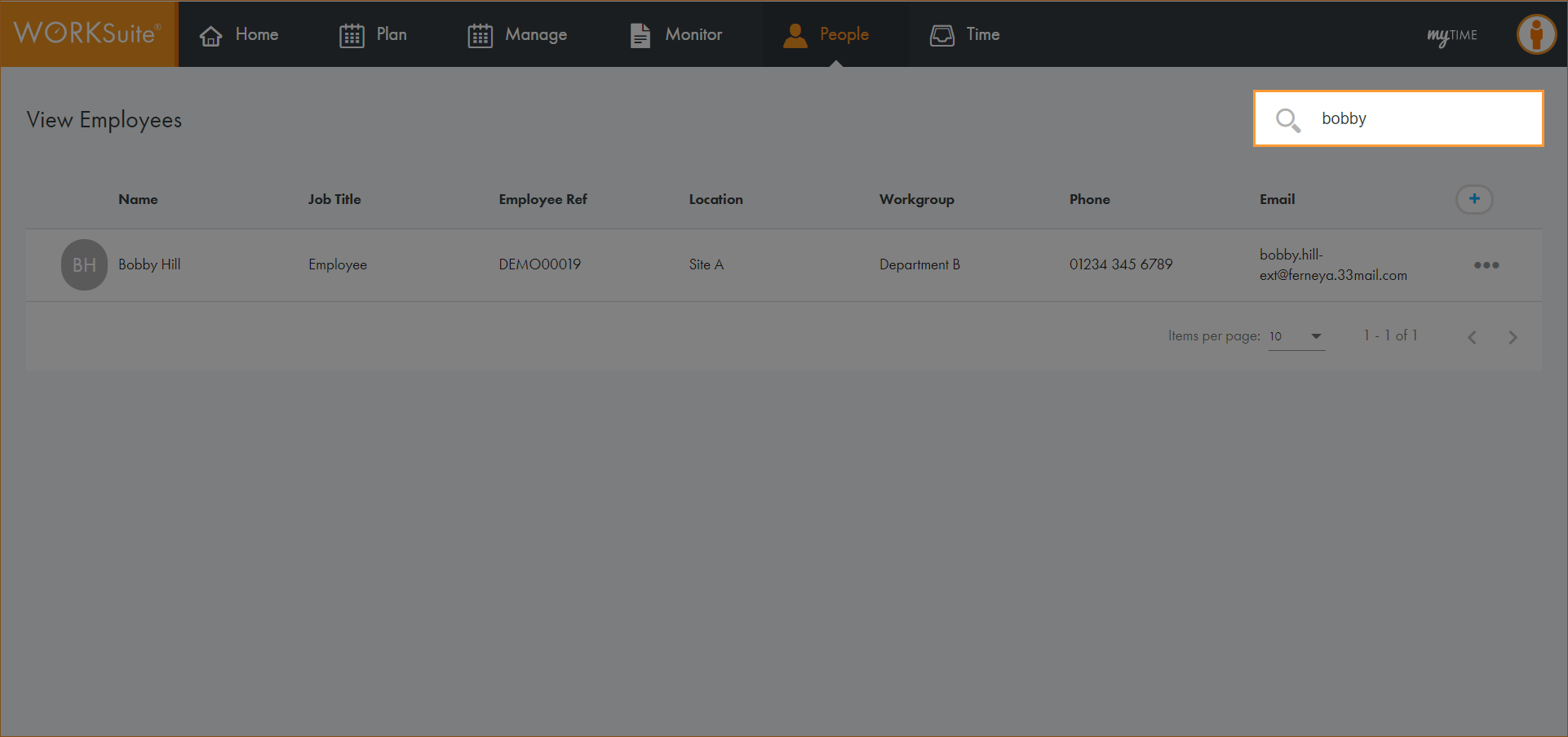
The records filter automatically.
- Click in any of the column headers to sort the records as required.
- Click … in the record that you want to work with and select Update Employee.
The Edit Employee Details screen is displayed:
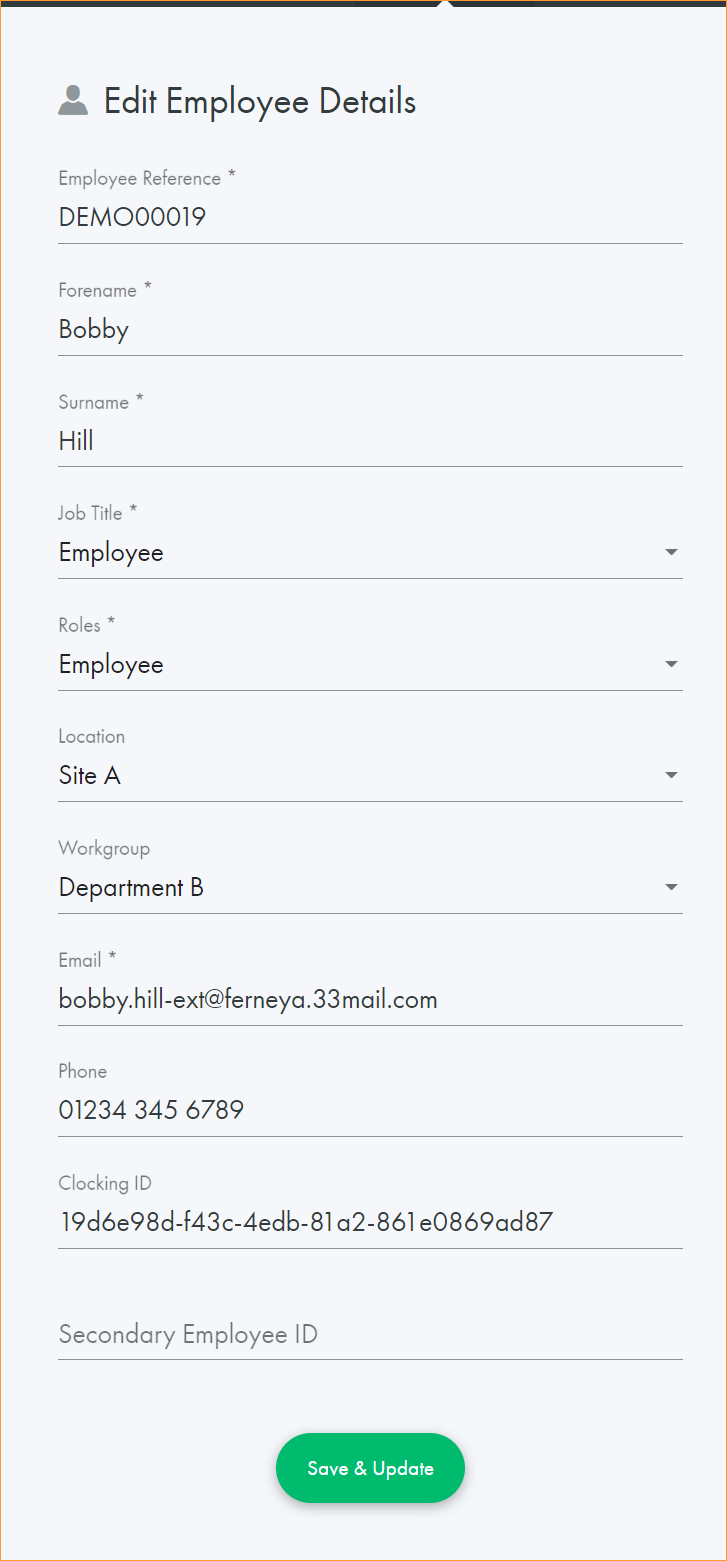
- Complete the fields displayed:
- The Employee Reference number must be unique. It is recommended that you use an existing payroll number or similar identifier.
- The selections available in the Job Title, Roles, Location and Workgroup fields are preconfigured for you.
- The Clocking ID reference must be unique, it links to external clocking ID software. This number must differ from the payroll or Employee Reference number.
- Assign a Secondary ID if you need to support any interfaces to external systems where the employee requires validation against a unique identifier.
Locations can refer to a geographical location or department. Your selections determine how employee records are viewed. Users can only view employees in the locations and workgroups they are linked to or have permission to view.
Changes to location and workgroup are clearly displayed in the Manage tab. In this example, Bobby Hill is worked in Department B until 11 November. They move to Department A on 12 November. Days are greyed out when Bobby is not working in the displayed department.
- Click Save & Update.
The Employee Details screen is displayed. Use this screen to add more detail to the employee record.